
View Categories

How to View Supplementary Files in Reference Entries

1 min read

(The following information and screenshots relate to the latest version of ReadCube. For instructions on the classic version, please click here.)

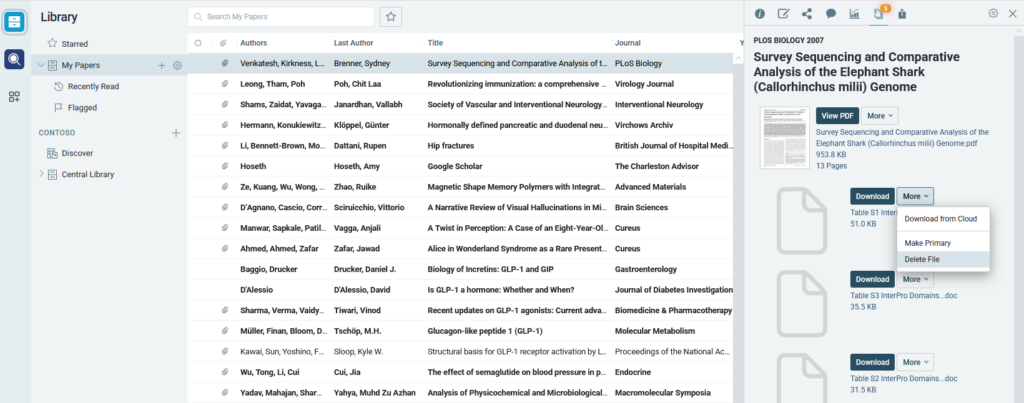
When you select a reference in your library, the right side panel will open. At the top of this panel is a number of options for the article, including the “Files” option. Select this option to see all files associated with that reference:

To add new files to the selected reference, drag-and-drop the files into the empty space in the panel or click the “+Add files” button at the bottom:

To delete a file, click “More” next to the file you want to delete and select the “Delete File” option:
***

ReadCube Classic

(The following instructions are for the classic version of ReadCube.)

When you select a reference in your library, the right side panel will open. At the top of this panel is a number of options for the article, including the “Files” option. Select this option to see all files associated with that reference. Note: if a supplement is already present, the number of additional files will appear in red.

Select the “Files” icon to view the files associated with an article.

In order to add a new supplement to the article, drag and drop additional PDFs directly into the blank space available or click “+Add Files” at the bottom of the panel:

To delete a file from a reference, click “More” and select the “Delete File” option: