
Deactivating users as a ReadCube admin
< 1 min read
As the administrator of your ReadCube account, you can deactivate or remove users. You also have the option to delete their library content or move it into your “Deactivated Users” shared library so that others can continue to benefit from it.
To proceed:
Locate the user you want to deactivate or remove and click the three‑dot menu to the right of their name.
Go to the Admin dashboard and select Users. Locate the user you’re looking for and look for the 3 dot menu on the far right side
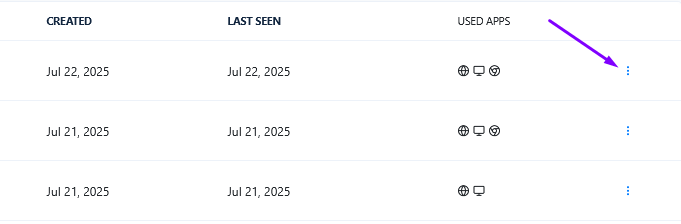
Click the 3 dot menu and select “deactivate users”
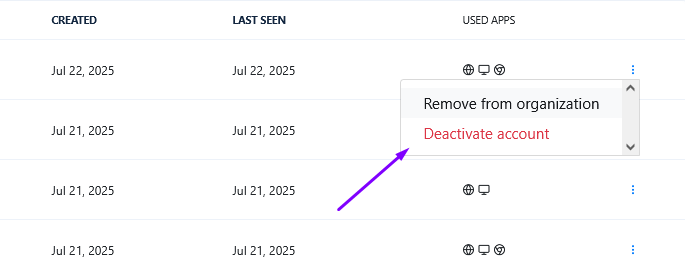
Once you select “deactivate account” you’ll be asked if:
- you want to permanently deactivate the user and their data or
- permanently deactivate the user but copy their personal library (data) by selecting “copy user’s personal library to ‘deactivated users’ library”
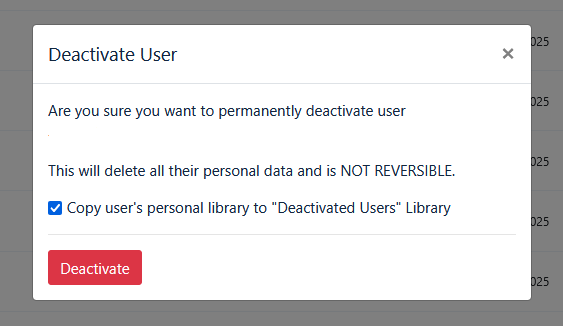
Once you confirm with the red “deactivate” button, the user’s account will be permanently deactivated and their personal data moved to the organization “deactivated users” account, if selected.


