Introduction to SmartCite for Citekeys
2 min read
SmartCite for Citekeys allows ReadCube users to easily insert citations from their libraries into any document, regardless of the word processor being used. With SmartCite for Citekeys, you can work in Word, Pages, LibreOffice, or the Manuscripts App.
Getting Started
First, ensure all entries in your ReadCube library have citekeys by launching the Papers desktop application. Note, at this time, SmartCite for Citekeys is only available on the Papers desktop application.
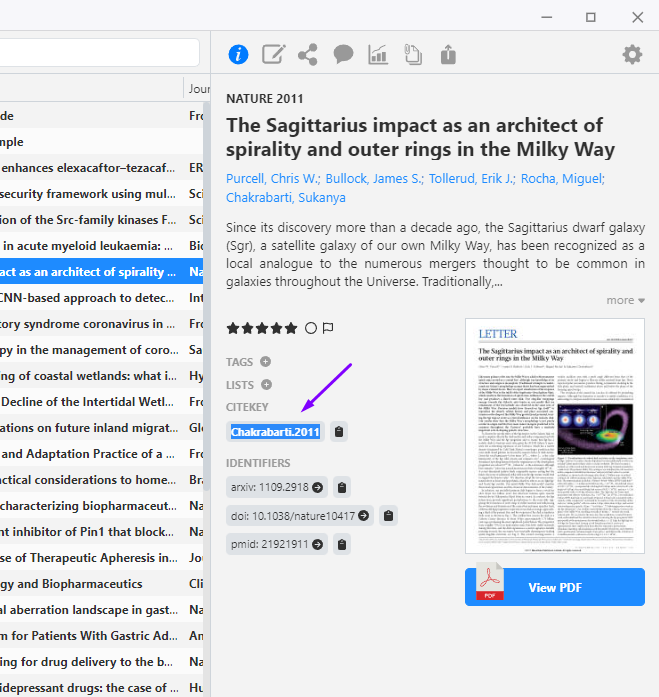
You can find a reference’s citekey in the Info Panel of the entry:
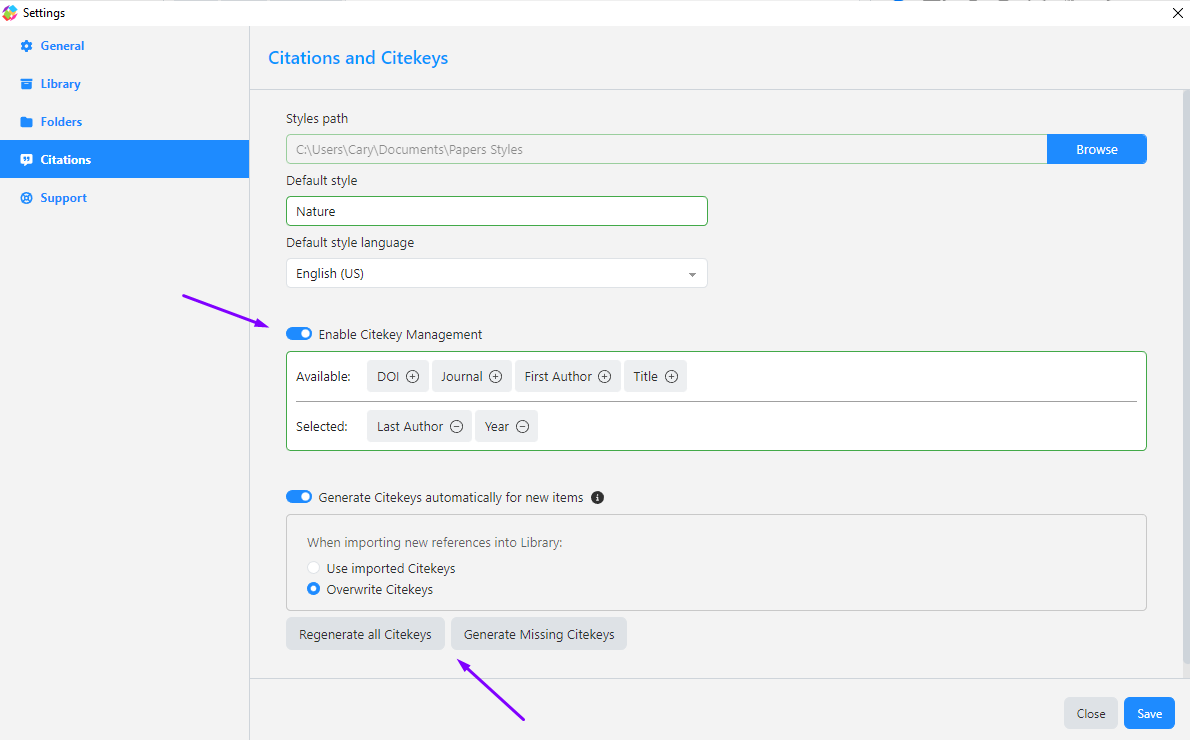
If some references are missing citekeys, you can generate them automatically:
- Open Papers.
- Go to Papers Settings → Citations.
- Set up your preferred citekey naming convention (typically based on the author’s last name and year of publication).
Once citekeys have been generated, you’re ready to start using SmartCite for Citekeys.
Inserting Citations
Open the word processor of your choice. When you’re ready to insert a citation:
- Copy the citekey from your library.
- Paste it between two curly brackets in your document.
Important: You must use curly brackets
{}— SmartCite for Citekeys will not recognize other symbols.
Example:
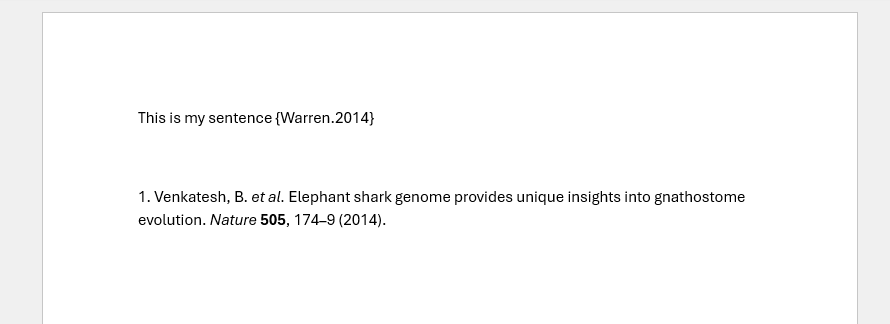
This is my example sentence {Warren.2014}
Continue adding citekeys throughout your document using the same format. When you’re ready to format your document and generate a bibliography, add the following on a new line at the end of your document:
{bibliography}

Final example:
This is my example sentence {Warren.2014}
{bibliography}
Save your document.
Formatting the Document
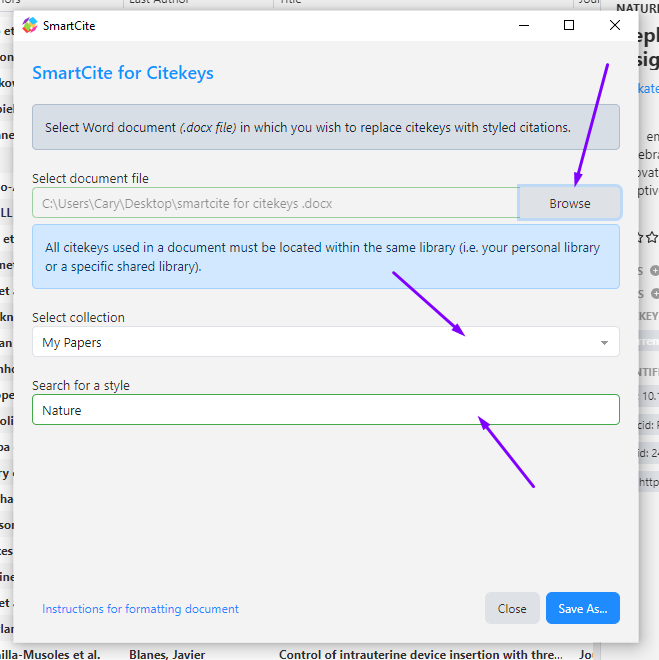
- Open the Papers/ReadCube desktop application.
- Go to Tools → SmartCite for Citekeys.
- Select:
- The document file from your computer.
- The reference collection (personal or shared library).
- Your preferred citation style.
- Click Save As.
Tip: Save a separate copy of the formatted document instead of overwriting the original.
SmartCite for Citekeys will generate a new, fully formatted version of your document, complete with inline citations and a bibliography.