
Using ReadCube mobile offline
< 1 min read
Just like with the ReadCube desktop application, you can access your ReadCube library offline on your mobile device (iOS or Android). However, to do so, you must first download your library locally to your device.
To download your library on both iOS and Android:
Open the mobile app and tap the dropdown menu in the upper-left corner.
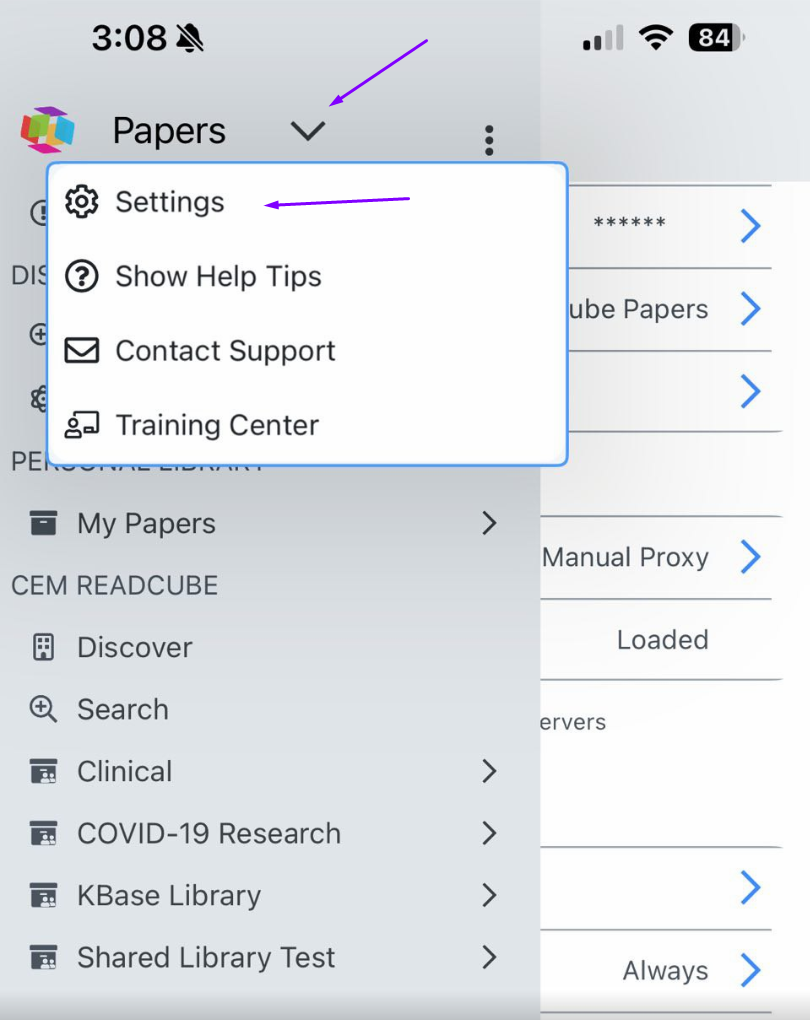
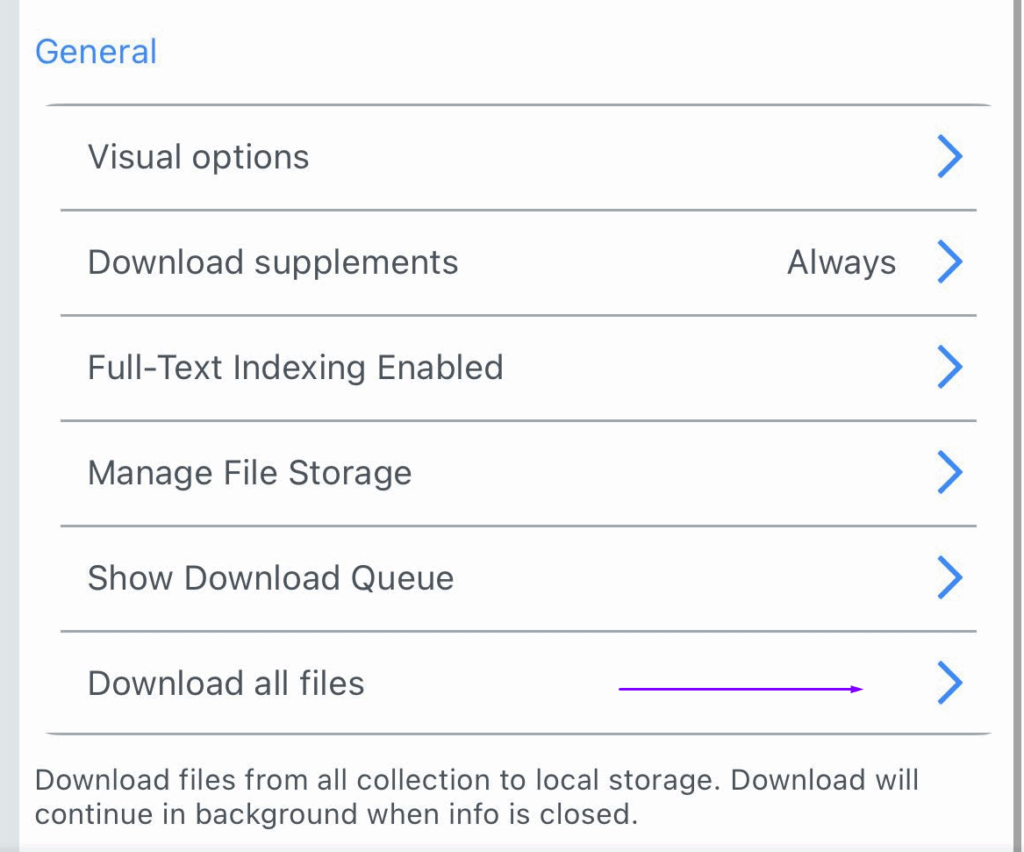
Scroll to the middle of the page and look for General – Download all files and click the blue arrow
On the next screen, you’ll see how much space is required to download your files, along with how much free space is available on your device. At the bottom of the page, under Collections in queue, you’ll see your personal library and any shared libraries you are part of.
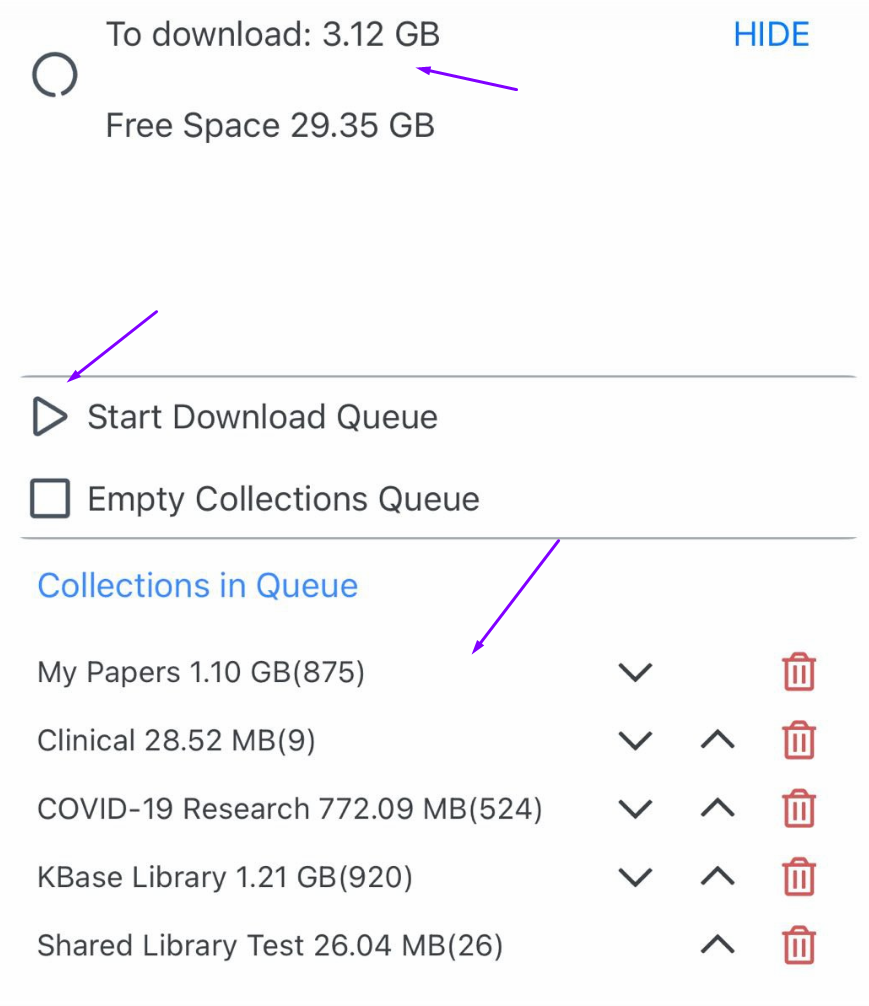
When you’re ready, tap Start Download Queue to begin downloading all your collections (libraries). Once downloaded, you’ll be able to access your library anytime—online or offline.
Note: Any changes made to your references while offline (such as adding notes or annotations) will not sync to your other devices until your mobile device reconnects to the internet.


