
How to View an Article’s Full Reference List in the Reader
< 1 min read
Easily access and manage an article’s references using web reader.
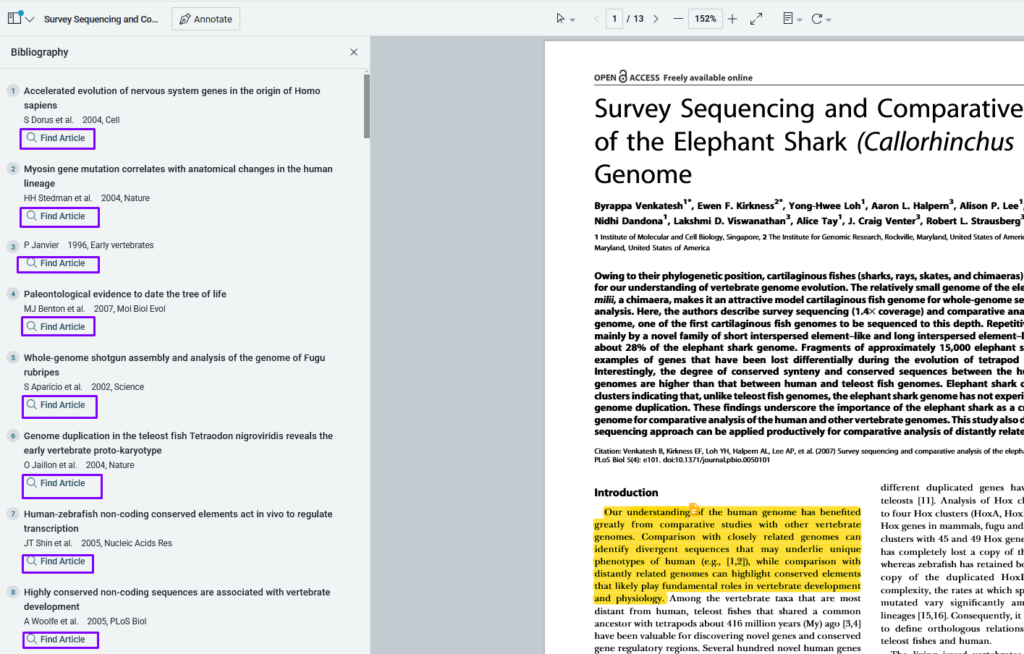
Viewing the Full Bibliography
- Navigate to the top of the web reader and open the menu bar on the left-hand side.
- Select “bibliography” to view all references listed in the journal’s default order.

Accessing PDFs
- Next to each reference, click the “find article” link to access the article PDF.
- ReadCube will automatically recognize references or PDFs already in your library.
Adding Citations to Your Library
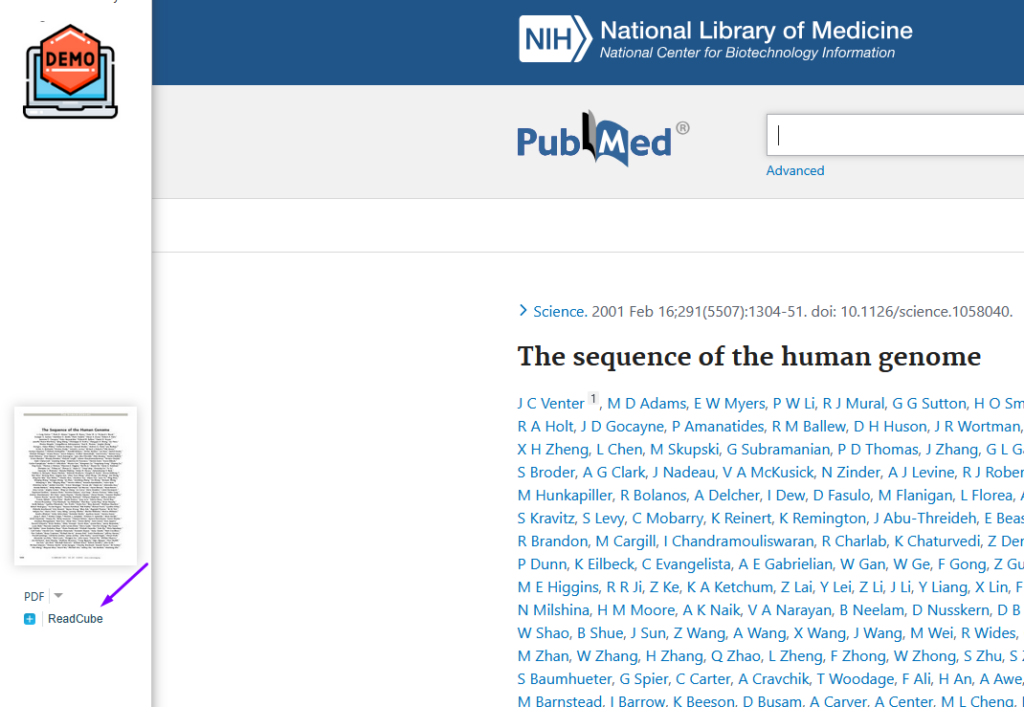
- By clicking on “find article”, you’ll be taken to the publisher page where you can then click to import the article directly into your ReadCube library
By leveraging these features, you can efficiently manage citations and enhance your research workflow with ReadCube.


