
How to Import Content into Your ReadCube Library via CSV
< 1 min read
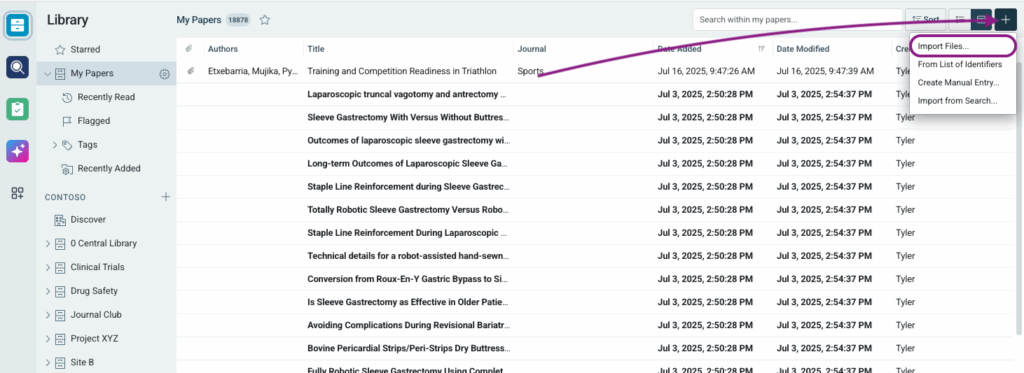
To import content into your ReadCube library via a .CSV file, first go to the specific library where you want to add the content. From there, click the “+” button and select “Import Files…”
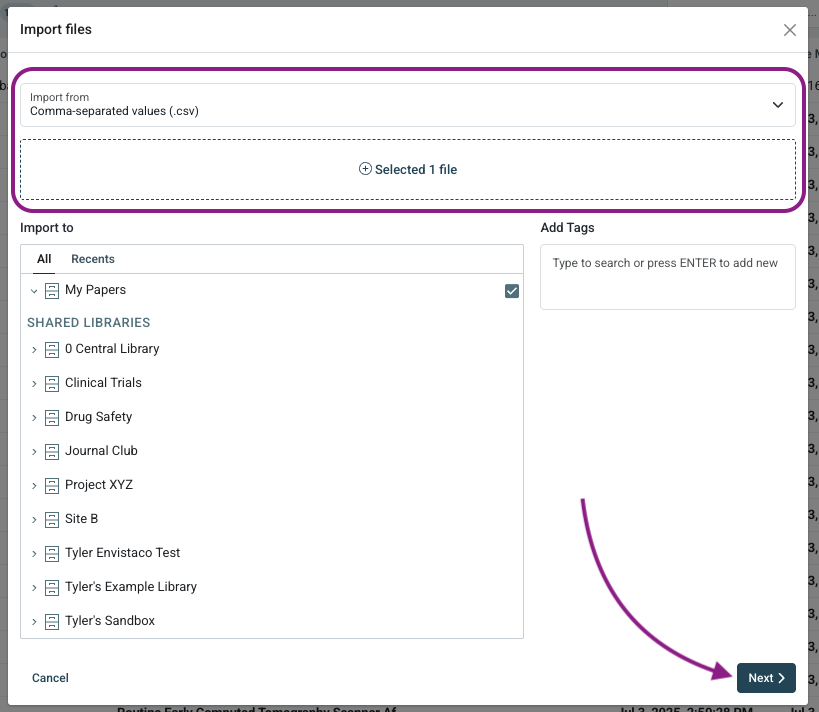
Select .CSV from the “Import from” dropdown menu, add your .CSV file in the “Select files” section and click “Next.”
Next, ensure you map the columns in your .CSV file to their corresponding field in ReadCube. To toggle off or ignore a .CSV column, simply click the toggle button to the left of the column name. To change a field in ReadCube, click the field you want to change to open the dropdown menu.
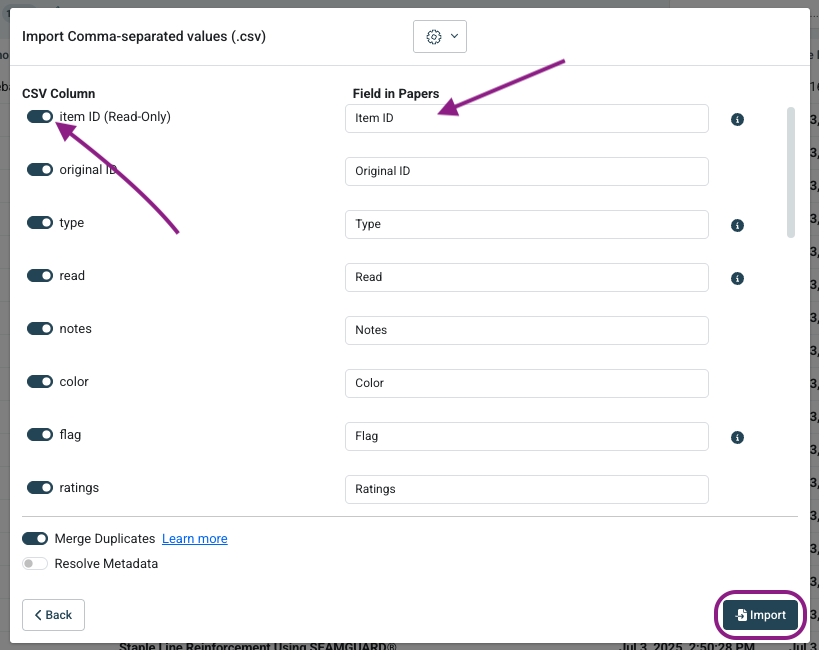
Once you complete the mapping, click “Import” to import the content into your library.


