
Article Matching (Manual and With Helper)
2 min read
(The following information and screenshots relate to the latest version of Papers. For instructions on the classic version, please click here.)
When you import articles into Papers, they are automatically matched to metadata thanks to our automatic matching feature. However, sometimes you may need to rematch metadata manually.
If an item is not matched with metadata automatically on import, an option to “Match” it will appear both when you right-click on the item in your library and in the sidebar info panel of the item.
Note: The matching helper is currently only available for references that have a PDF.
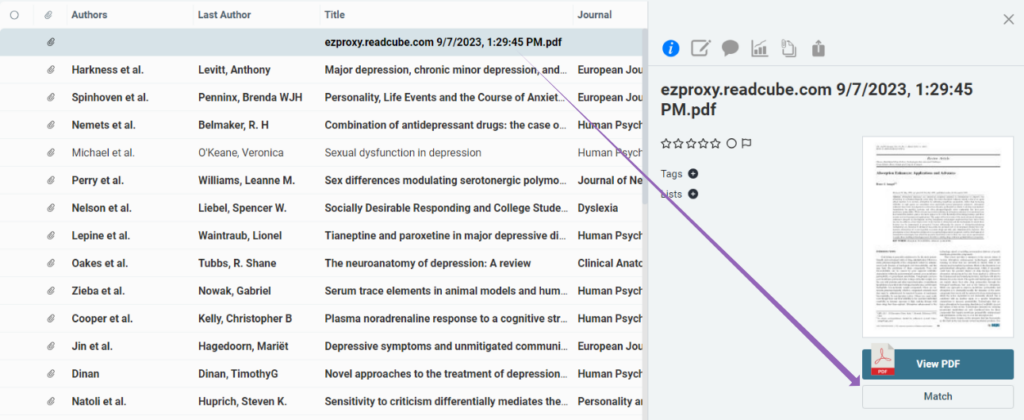
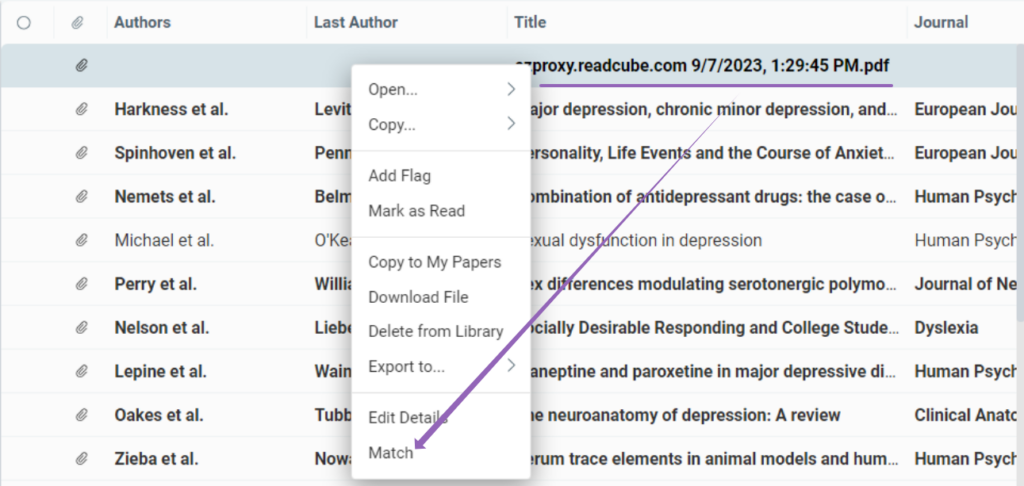
When you activate the matching helper, it will take a second pass at the paper and try to match the PDF to metadata automatically. In case it is unable to do so, you can manually match it.
An option to manually match will appear, allowing you to either select a part of the metadata in the PDF preview to use for a new search, or you can simply input a part of the metadata and run a new search.
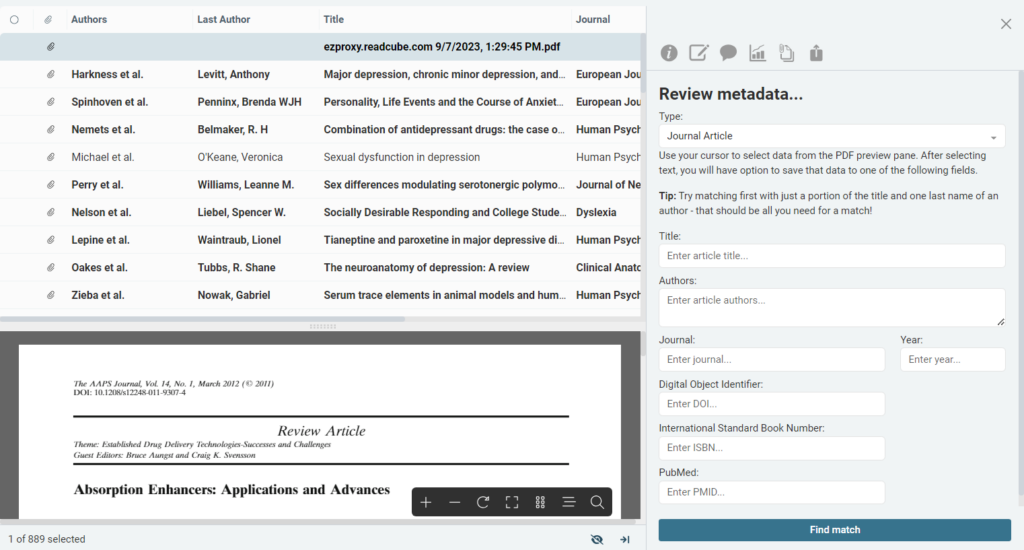
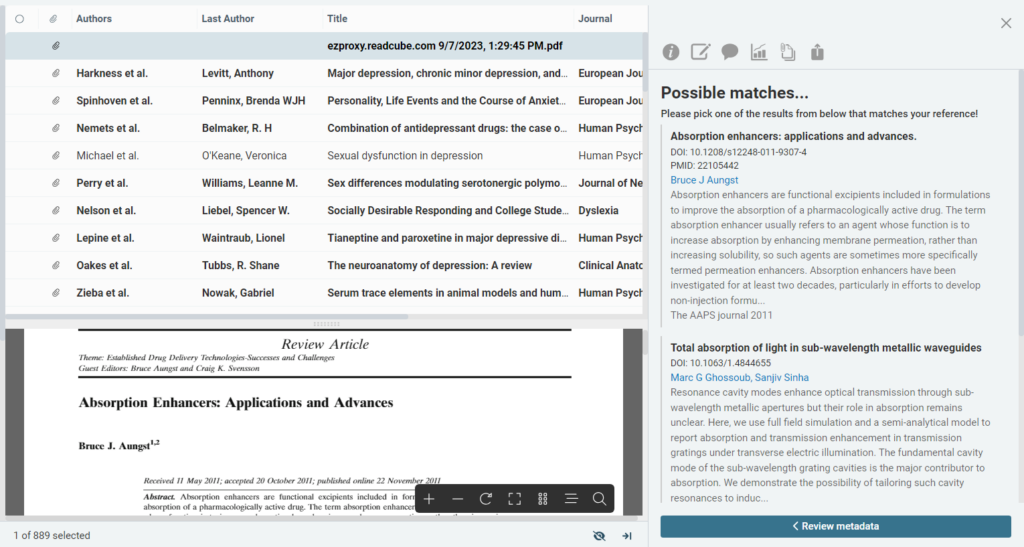
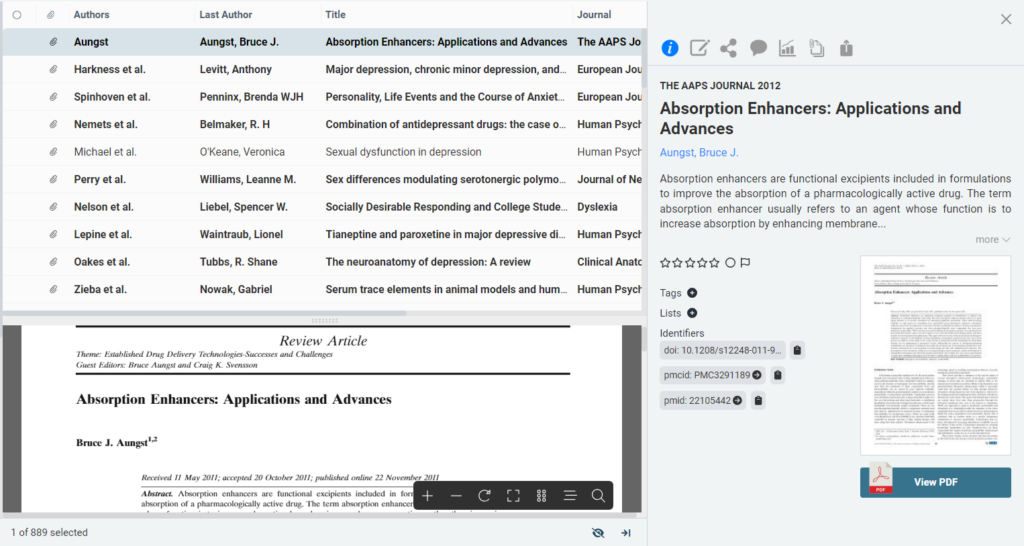
Other Metadata Options
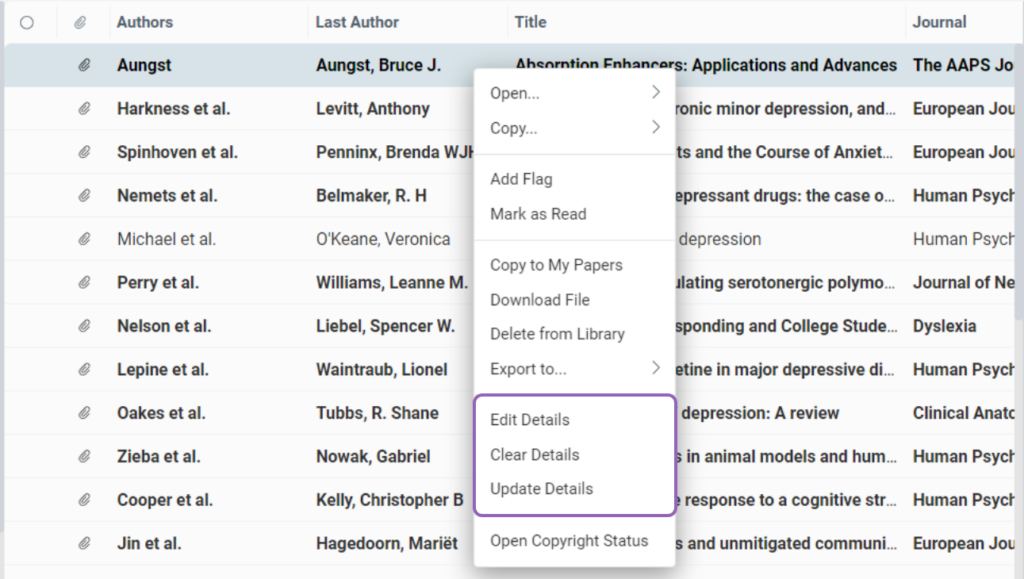
Right-clicking on a reference will show you a number of options, including the section that allows you to edit, clear and update metadata.
Edit Details
Edit Details will bring up the metadata editing panel, including the PDF preview, so you can manually edit the fields and populate the metadata.
Clear Details
Clear Details will erase all metadata from the reference. The name will revert back to the original download/PDF name. From here you can repopulate all the metadata fields manually or use “Match” option to try and repopulate it automatically.
Update Details
Selecting Update Details will rerun the matcher and populate any missing metadata fields.
Check out our matcher do’s and don’ts when trying to find the correct article metadata.


